8 Best Free Video to MP3 Audio Extractor Tools (2026)
 Daniel Sternlicht11 min read
You uploaded a webinar recording, a tutorial, or an old MP4 and you want just the audio. Maybe you need a podcast cut, a voiceover sample, a background track for a reel, or a clean MP3 to feed into a transcription tool. The good news: you do not have to install software or pay anything to do it.
Below are the eight free online tools that actually work in 2026, ranked by what they are best for. Every pick has notes on file size limits, output formats, watermarks, and the kind of user each one fits.
Quick Comparison
| Tool | Free output | Max free file | Watermark | Best for |
|---|---|---|---|---|
| Vidocu | MP3, WAV | 500MB | None | Extract + transcribe + voiceover in one workflow |
| VEED.io | MP3, AAC, FLAC | 250MB / 10 min | None on audio | Light editing after extraction |
| Kapwing | MP3 | 250MB / ~7 min | None on audio | Social clips and YouTube URL imports |
| Clideo | MP3, WAV, AAC, FLAC | 500MB | None on audio | Format flexibility |
| FlexClip | MP3, WAV | 30 minutes | None on audio | Longer clips up to half an hour |
| 123apps Audio Converter | MP3, WAV, M4A, FLAC, OGG, AMR | ~2GB | None | Power users who want bitrate control |
| FreeConvert | MP3 | 1GB | None | Larger source files |
| Media.io | MP3, WAV, AAC, FLAC, OGG | 250MB | None | Batch extraction and waveform export |
What to Look For in a Free Audio Extractor
Most "free" extractors are not equally free. Before you upload anything, check four things:
- Output format. MP3 is the lowest common denominator. If you plan to edit the audio in a DAW or run noise removal, look for WAV or FLAC.
- File size and length caps. Free tiers often cap at 250MB or 10 minutes. A long Zoom recording will fail silently or refuse to upload.
- Watermarks. Most extractors do not watermark audio output, but some watermark the video preview or the audio if it goes through a video editor first. Read the export step before you start.
- What happens after extraction. If your real goal is to transcribe the audio, generate captions, or feed it into a voiceover, an extractor that hands off to those workflows saves a step.
That last point is what separates the picks below.
Need more than just an MP3?
Vidocu turns any video into clean audio, captions, transcripts, and translations in a single workflow. No extension, no second tool.
Try Vidocu free1. Vidocu: Best for Extract Plus Transcribe, Voiceover, and Translate
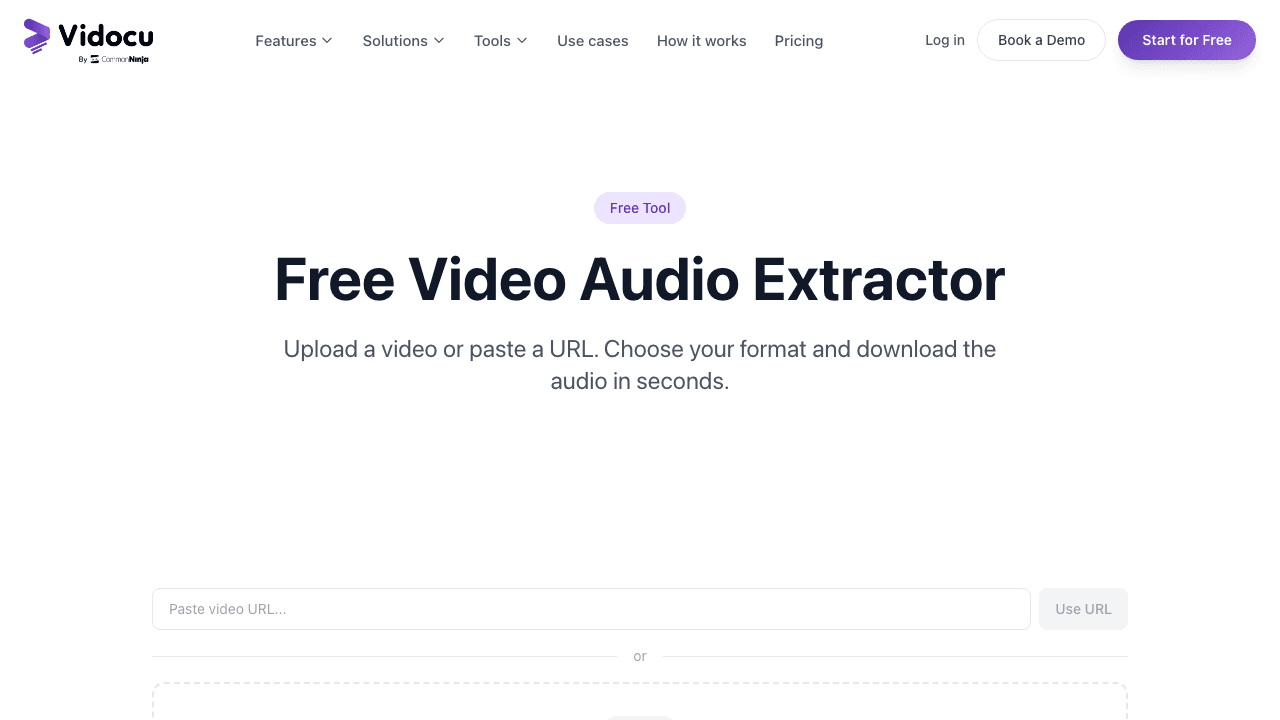
Vidocu's free video audio extractor gives you a clean MP3 or WAV file in a few clicks. The reason it leads this list is not the extractor itself: it is what comes after. Vidocu was built around the workflow of turning a video into something useful, so once you have the audio, the same upload can also produce accurate subtitles, a searchable transcript, an AI voiceover in a different voice, or a translated version in another language.
If your goal is just "I want the MP3," Vidocu handles that fine. If your goal is "I want the audio because I am going to transcribe it, repurpose it, or hand it to a podcast editor," Vidocu skips the round trip through a separate tool.
Best for: Creators, support teams, and educators who treat extraction as step one of a larger workflow.
Free tier: Generous, supports MP3 and WAV output, no watermark on audio.
Limitation: The free plan caps total monthly minutes; heavy users move to paid.
2. VEED.io: Best for Light Editing After Extraction
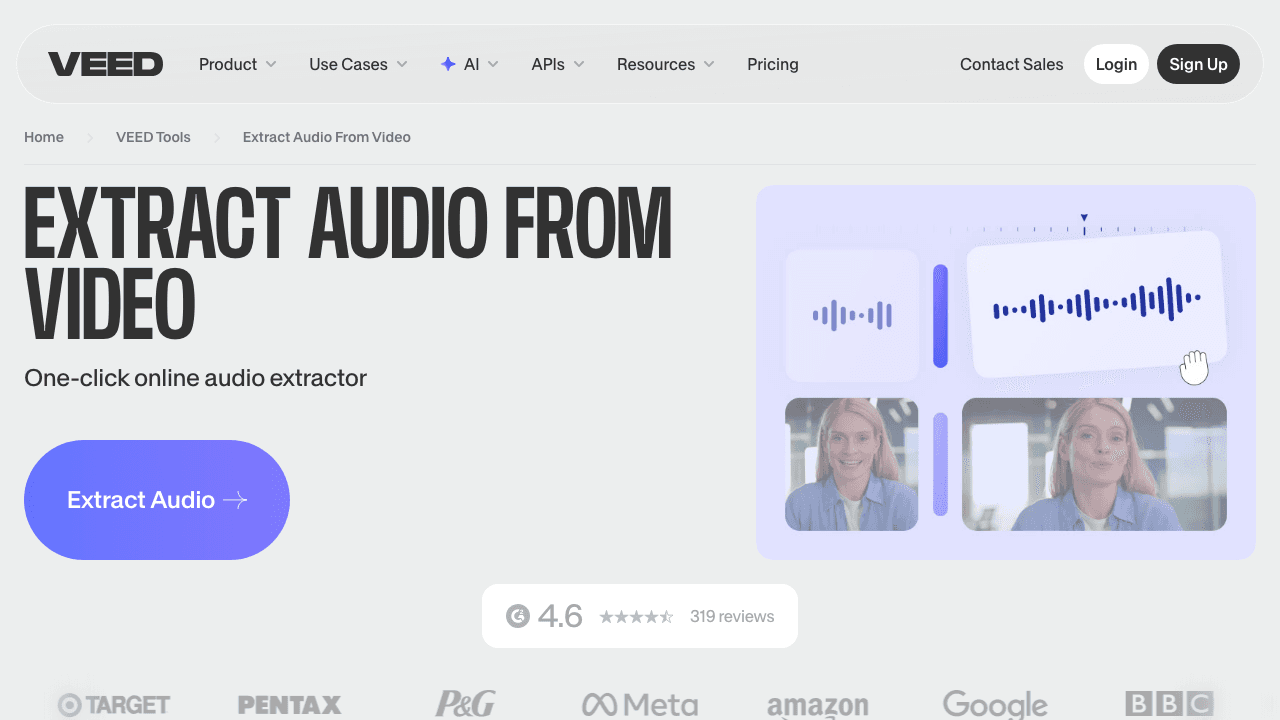
VEED's audio extractor lives inside its full browser-based video editor. That sounds heavy for a one-click task, but it is genuinely useful when you want to trim silence, remove background noise, or grab only the middle 30 seconds of a clip before exporting.
The audio export is clean (no watermark on the MP3 or AAC file). VEED also offers Dolby noise removal on the free tier, which is handy if your source recording is noisy.
Best for: Users who want to clean up the audio before downloading.
Free tier: Up to 10 minutes of export, 250MB upload, free output as MP3, AAC, or FLAC.
Limitation: The free editor watermarks video exports (audio export stays clean).
3. Kapwing: Best for Social Clips and YouTube Imports
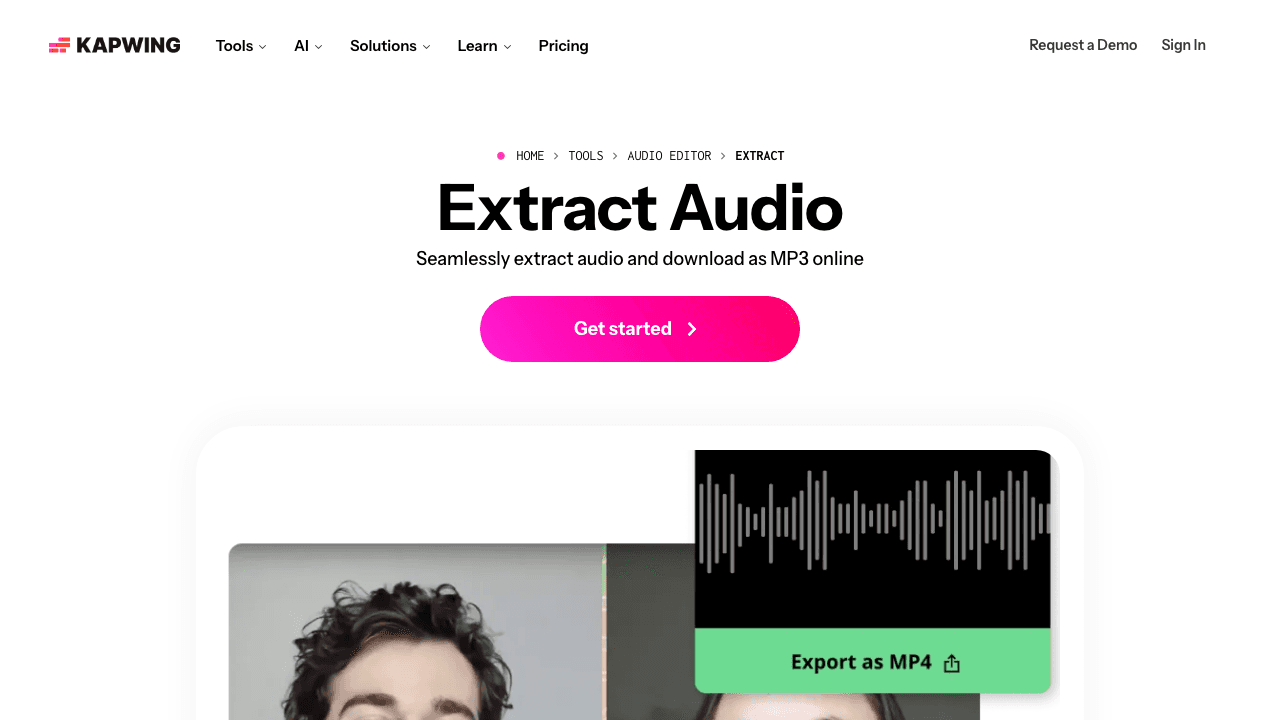
Kapwing's audio extractor is the easiest path if your source video is on YouTube or another social platform. Paste the URL, and Kapwing pulls the file in for you, then exports the audio as MP3.
The interface is among the cleanest in this list, and the workflow plays well with Kapwing's broader tools (subtitles, resizing, background removal). If you are already using Kapwing for short-form video, the audio extractor is one click away.
Best for: Social-first creators clipping audio from short videos.
Free tier: ~7 minutes of audio export, 250MB uploads.
Limitation: Free output is MP3 only; longer files require a Pro account.
4. Clideo: Best for Format Flexibility
Clideo wins on output options. Most free extractors give you MP3 and call it a day. Clideo lets you export to MP3, WAV, AAC, or FLAC without paying, which matters if you are feeding the file into Audition, Logic, or a podcast platform that prefers a specific codec.
The site is fast, the upload is straightforward, and your file auto-deletes after a short window. The watermark applies to video output, not audio.
Best for: Producers and audio editors who want lossless WAV or FLAC.
Free tier: 500MB uploads, four output formats.
Limitation: Free is metered; heavy use eventually pushes you to a paid plan.
5. FlexClip: Best for Longer Clips
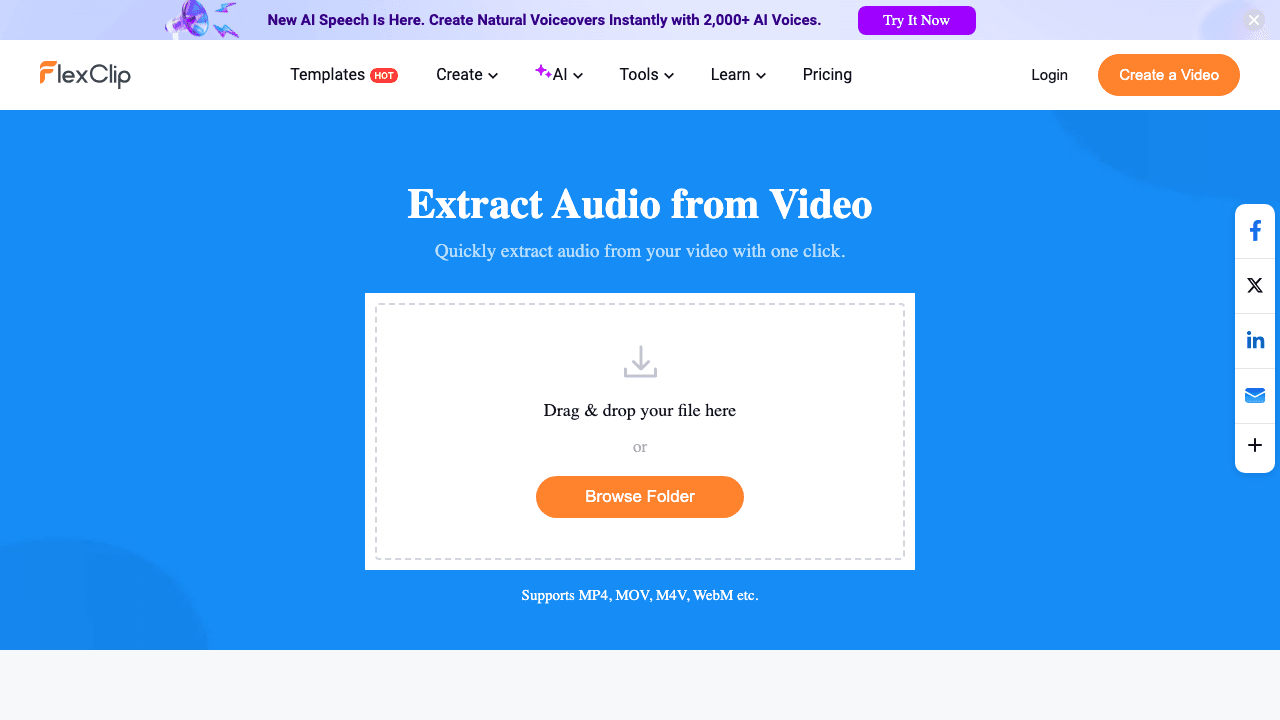
Most free extractors choke on anything longer than ten minutes. FlexClip lets you process up to 30 minutes of source video on the free tier, which is more than enough for a webinar segment, a long lecture chunk, or a podcast episode.
The flow is simple: drag, drop, choose MP3 or WAV, download. FlexClip's broader product is a video editor, so you can tidy up the file inside the editor first if you need to.
Best for: Webinars, lectures, and long-form recordings.
Free tier: 30-minute input length, MP3 and WAV output.
Limitation: Heavy upsells toward FlexClip's paid editor.
6. 123apps Online Audio Converter: Best for Power Users
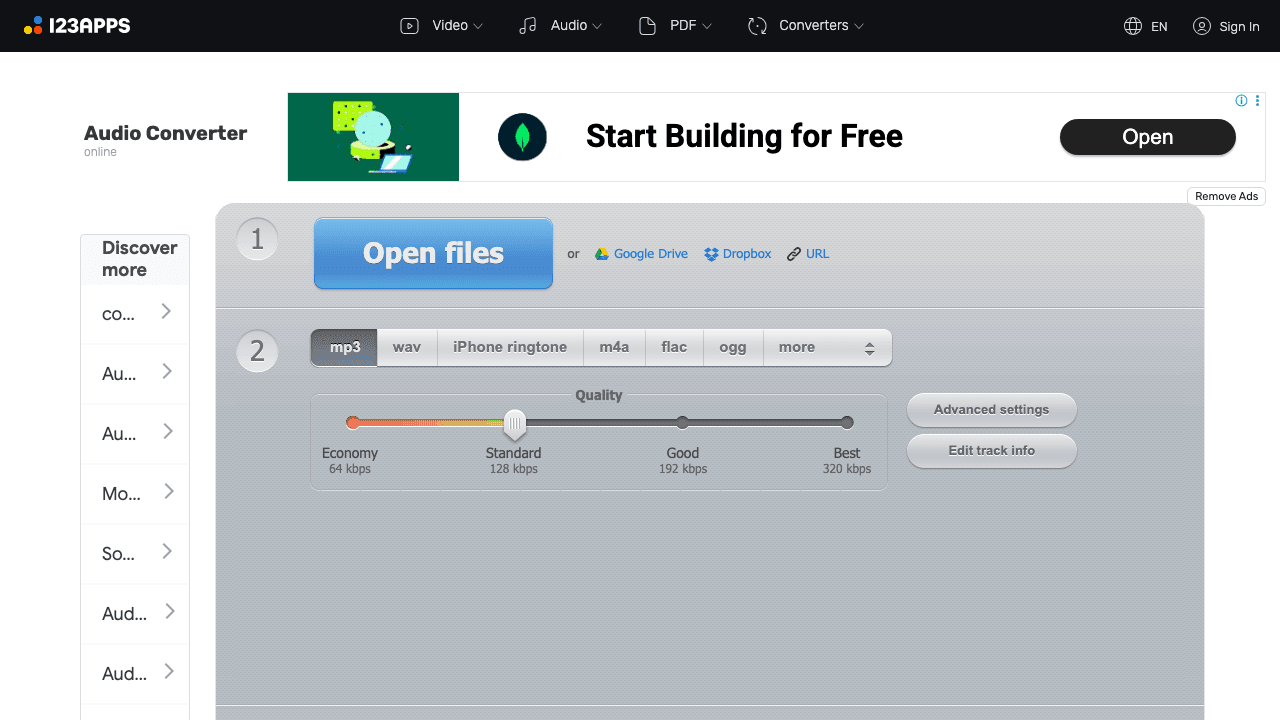
If you want control, 123apps is the answer. Six output formats (MP3, WAV, M4A, FLAC, OGG, AMR), bitrate selection, sample rate, channels, fade in / fade out, and a built-in trim tool. There is also a one-click iPhone ringtone preset.
The site has been around for over a decade and supports 300+ input formats, including obscure container types most browsers refuse to play. No signup, no email gate.
Best for: Audiophiles, podcast editors, and anyone who needs precise control over output settings.
Free tier: Generous; daily operation count is the only soft cap.
Limitation: Premium ($6/month) unlocks files larger than ~2GB and removes ads.
7. FreeConvert: Best for Large Source Files
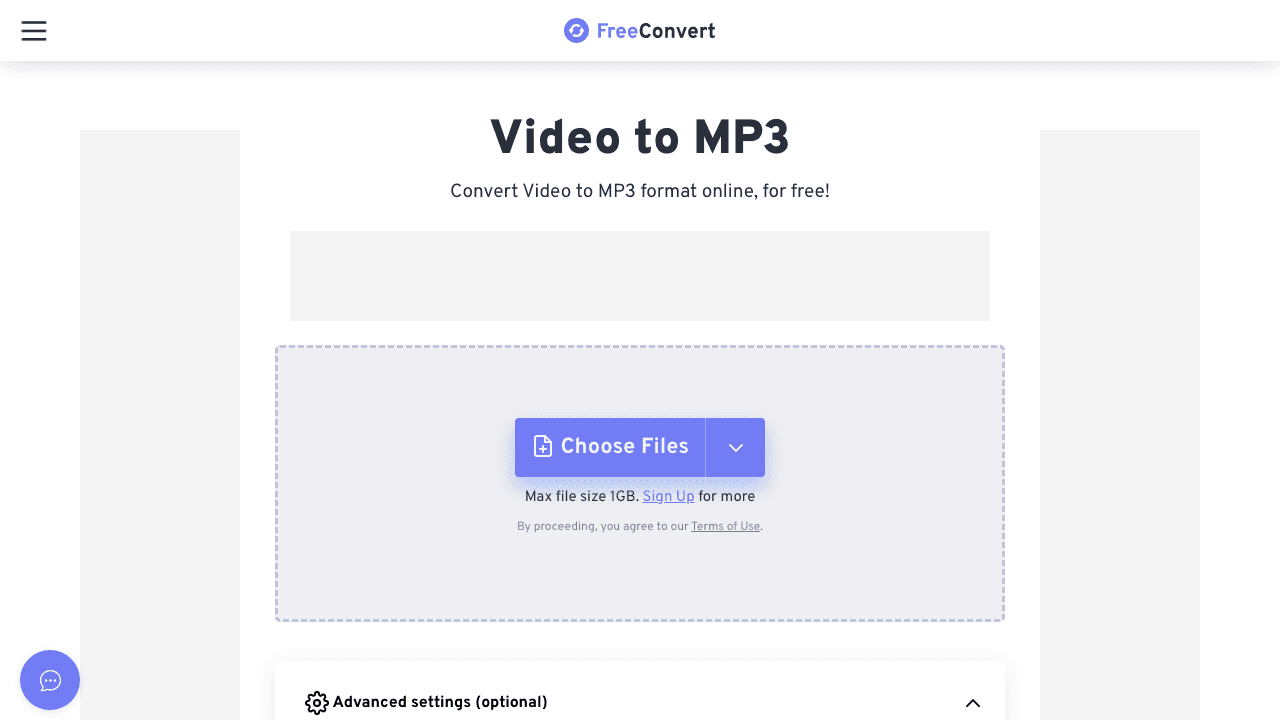
FreeConvert raises the free file-size ceiling to 1GB, the highest on this list and roughly four times what most competitors allow. That matters if you are working with a long screen recording, a 4K video, or a multi-hour interview.
The dedicated video-to-MP3 flow includes advanced options for bitrate, sample rate, and trim. Output is MP3 only on the free path, but it is a clean MP3.
Best for: Large screen recordings, long interviews, multi-hour videos.
Free tier: 1GB uploads, no signup needed for one-off jobs.
Limitation: MP3-only on the free flow; paid tiers add WAV and others.
Extracting audio from a long screen recording?
Vidocu accepts large files and processes them in minutes, with subtitles and a transcript ready alongside the audio.
See Vidocu's video tools8. Media.io: Best for Batch Extraction and Waveform Export
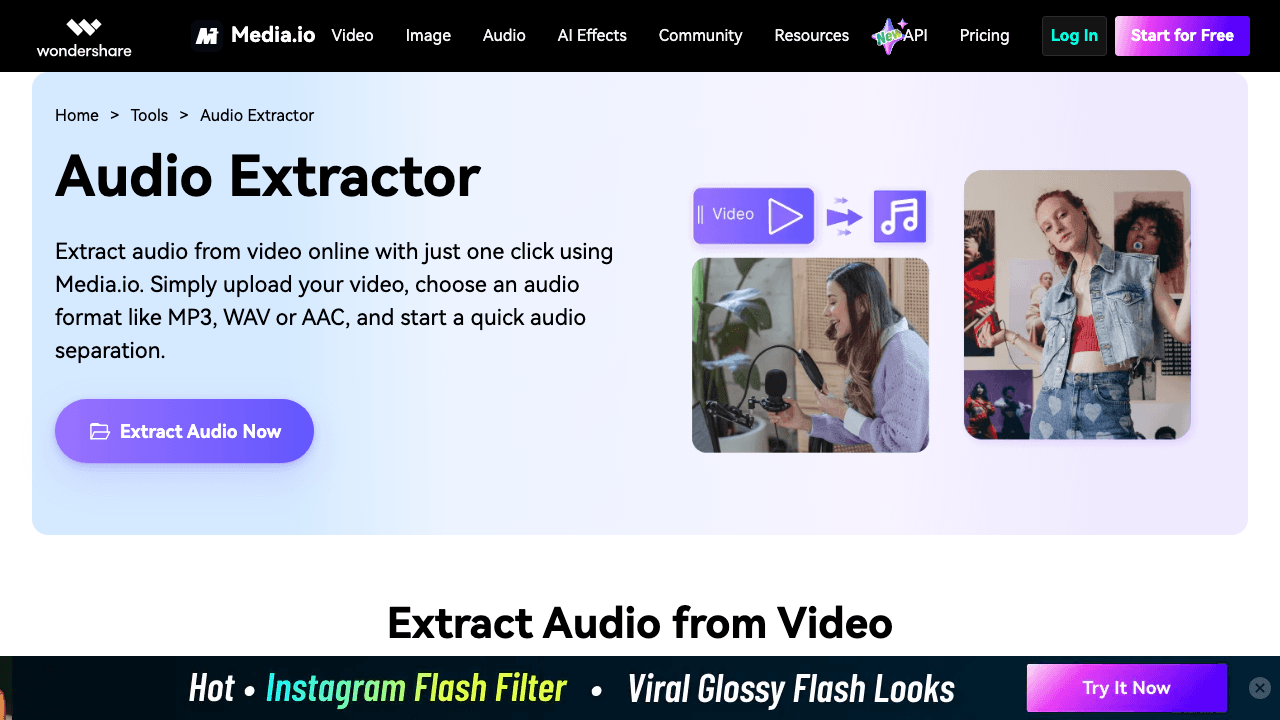
Media.io (by Wondershare) is the only free extractor on this list that supports batch processing. Drop ten videos in, and it returns ten MP3s. That alone earns it a place if you are processing a backlog.
It also produces an animated audio waveform you can drop into a social post, transcribes audio inside the same tool, and exports across MP3, WAV, AAC, FLAC, OGG, and AIFF. The free file cap is 250MB, which is the main constraint.
Best for: Creators with a backlog of videos to extract from at once.
Free tier: 250MB per file, batch supported, six output formats.
Limitation: AI features (transcription, denoising) are metered on the free tier.
How to Choose
Start with how big and how long your source video is. Anything under 10 minutes and 250MB, take the tool with the cleanest UX (Kapwing or Vidocu). Long files or larger uploads, default to FlexClip or FreeConvert. If you need WAV or FLAC, Clideo is the easiest free path; if you need bitrate control, 123apps.
The bigger choice is whether the audio is the end of your workflow or the start. If you are about to send the MP3 to a transcriber, a translator, or a voiceover service, an extractor that runs all of those steps from the same upload saves you from juggling tools.
A common pattern: someone extracts an MP3, uploads it to a separate transcription service, then uploads the transcript to a translation tool, then re-records the voiceover in a fourth app. That same job runs end-to-end in a single Vidocu upload with auto-generated subtitles, voiceover replacement, and translated tracks included.
If you are building out a broader video toolkit, see the roundups of the best free video format converter tools, the best AI voiceover tools for tutorial videos, and the best free tools to add music to a video once the audio is out.
FAQ
What is the difference between a video to MP3 converter and an audio extractor?
Functionally, very little. "Audio extractor" emphasizes that the source contains an audio track inside a video container, and you are pulling it out without re-encoding the video. "Video to MP3 converter" emphasizes the output. Most modern tools do both jobs in one step.
Can I extract audio from a YouTube video?
Yes, but you should only do this for videos you own or have permission to use. Kapwing accepts YouTube URLs directly. For other tools, download the video first via a method allowed by the platform's terms, then upload the file to the extractor.
What audio format should I export to?
MP3 for most general uses (podcast platforms, social media, casual listening). WAV or FLAC if you plan to edit the audio further or need lossless quality. AAC is a smaller-file alternative to MP3 for delivery. M4A is good for Apple ecosystem playback.
Will the audio quality be lower than the original?
It depends on the format. MP3 is lossy: you will lose some quality compared to the source. WAV and FLAC are lossless: the extracted audio matches the source quality. Bitrate also matters; 192 kbps is the realistic floor for clean speech, 256 kbps or higher for music.
Are these tools safe for confidential recordings?
For most reputable tools (the ones in this list), uploads are encrypted and auto-deleted within 24 hours. Read each tool's privacy policy before uploading anything sensitive (legal recordings, customer calls, internal meetings). For the highest assurance, run a desktop tool like VLC locally instead.
Wrapping Up
Eight free tools, eight different best-for angles. The right pick depends on file size, output format, and what you plan to do with the audio after.
If extraction is the start of a longer workflow (transcription, captions, voiceover, translation), it is worth using a tool that handles the whole pipeline. Try Vidocu for free and turn one upload into audio, captions, a transcript, and a translated version, all in a few minutes.

Written by
Daniel SternlichtDaniel Sternlicht is a tech entrepreneur and product builder focused on creating scalable web products. He is the Founder & CEO of Common Ninja, home to Widgets+, Embeddable, Brackets, and Vidocu - products that help businesses engage users, collect data, and build interactive web experiences across platforms.